Run a shoot in the real app.
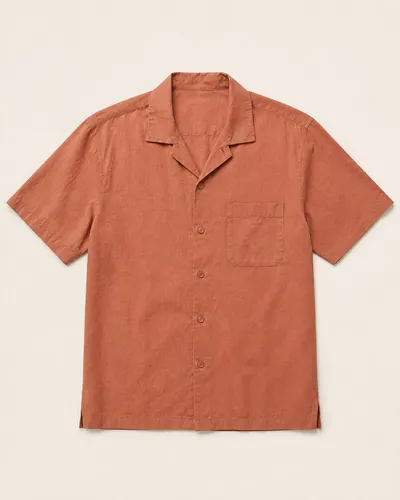
This is Dambl’s Shoot screen on a demo store with one product, a camp-collar shirt and its supplier photo. Follow the steps, or click anything you like.
- Open a productThe shirt is already open. Change, beside it in the left pane, lists your catalog with the photos already on each product.
- Pick a Scene and a Model, then press ShootChange the Scene or the Model if you like, then press Shoot at the bottom of the left pane. The button shows the count and the credits first.
- The shoot runsEach photograph is made on its own and drops into the grid when it is ready.
- Open a photographClick any photograph to see it full size.
- Push it to the storePush to store adds the photograph to the product's media in Shopify. The photos already there stay.
- It's on your productIn your store, the shirt now has its supplier photo and the new one beside it.
Step 2 of 6: Pick a Scene and a Model, then press Shoot Change the Scene or the Model if you like, then press Shoot at the bottom of the left pane. The button shows the count and the credits first.
A woman, late twenties to early thirties, with an average build, of average height, medium skin, medium-length dark brown hair. Photographed head and shoulders, facing the camera, on film by one window against a plaster wall — the same room and the same frame as the built-in models.
Your photos show the front. Nothing will be shot from behind — pose, distance and framing still vary freely. Add a photo of another angle and those shots open up.
 White Studio
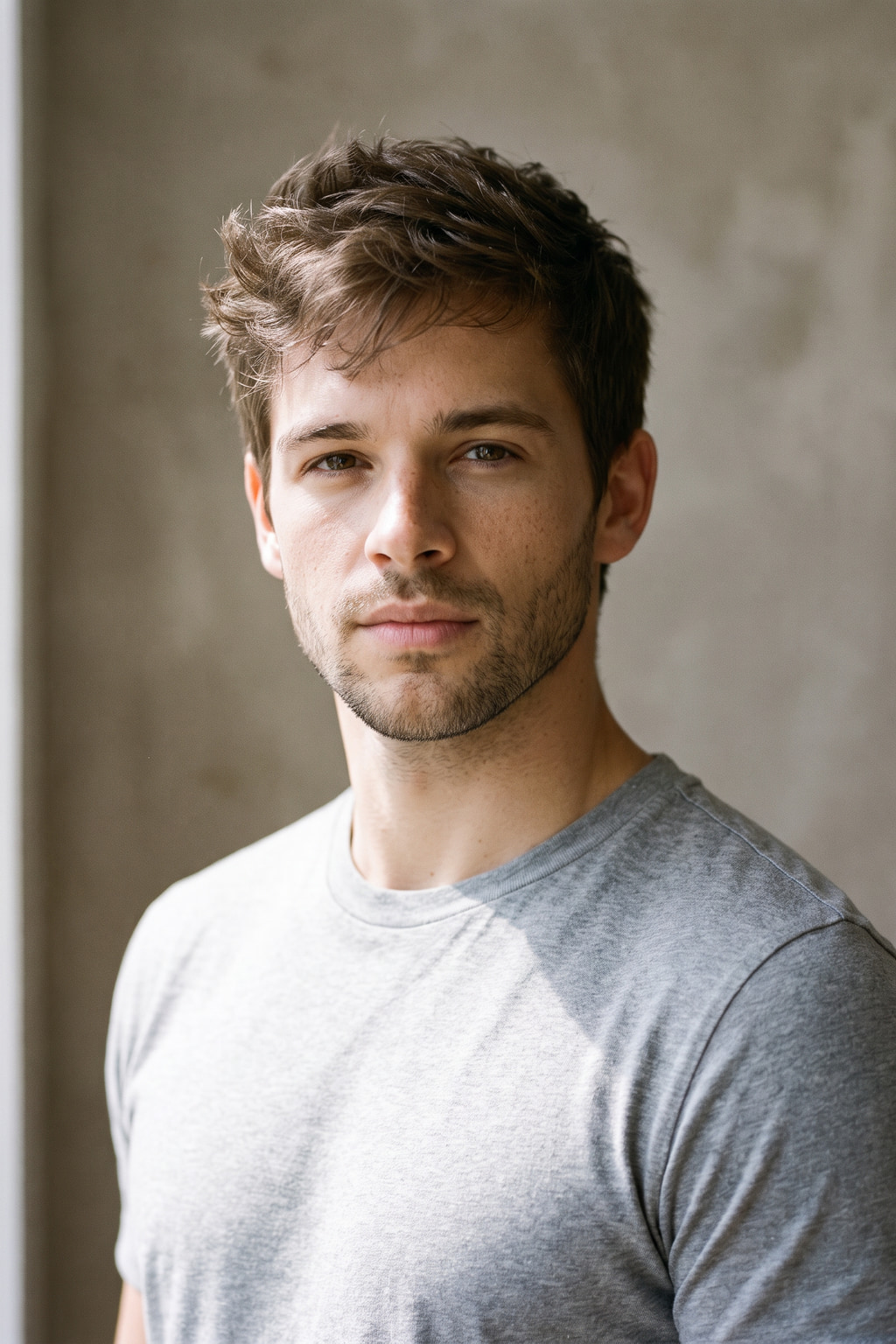 Casey
CaseyNothing shot yet
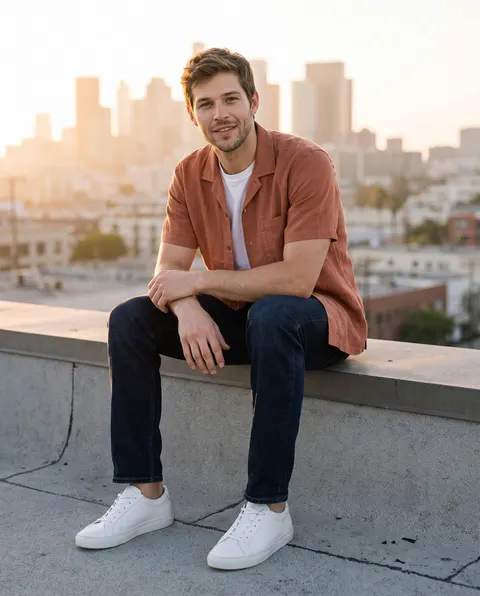
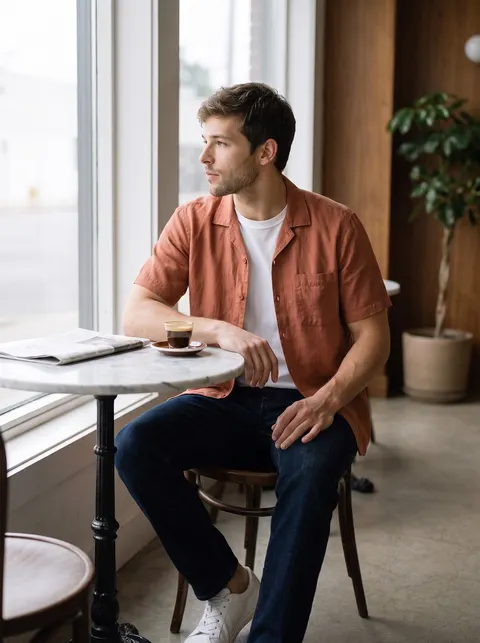
4 shots on a model, white studio, framed 9:16 for full-screen mobile / story. Press Shoot and they appear here.
This is Dambl’s real Shoot screen with a demo store. A demo shoot plays back one real White Studio shoot of this shirt, whatever Scene, Model or Frame you pick, and nothing is charged or sent to Shopify.